https://www.digitalocean.com/community/tutorials/how-to-set-up-seti-home-on-ubuntu-14-04-or-debian-7
Introduction
SETI@home is a large volunteer distributed computing project where software running on participant systems is used to analyze space telescope radio data in order to identify signals or signs of intelligent life. SETI@home uses software known as BOINC which is available on many platforms including Linux.
BOINC has a graphical application but also works via the command line. This makes running SETI@home on a Droplet or another headless server very feasible. SETI@home requires very little disk space for usage — typically, 100MB of space is sufficient — but can utilize as much CPU as it's given.
Prerequisites
Step One — Install boinc-client
SETI@home operates via the BOINC client which is available in the standard Debian and Ubuntu repositories.
sudo apt-get install boinc-client
Step Two — Connect to a SETI@home Account
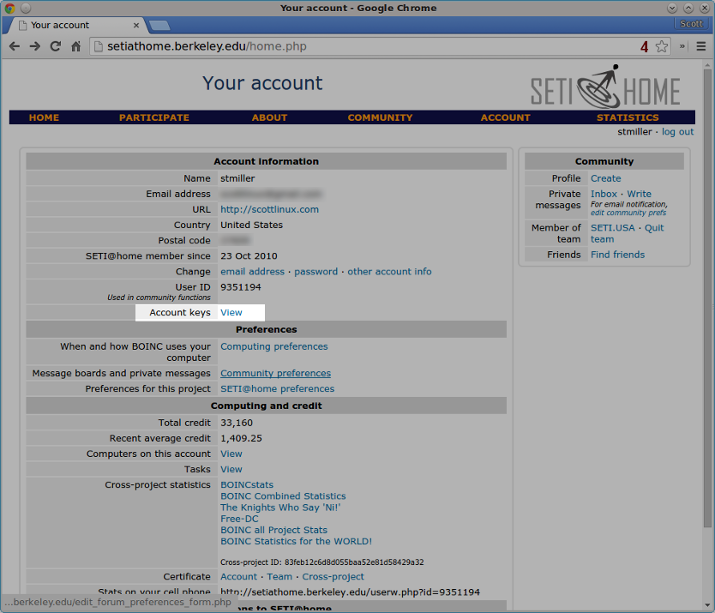
With SETI@home, you'll earn SETI credit for work completed. To connect this host to a SETI@home account and receive credit, an account key is needed.
You'll see your SETI@home account key on the top of the next page. Run the following command with your account key:
boinccmd --project_attach http://setiathome.berkeley.edu account_key
At this point, boinc will begin crunching away with default values.
For now, stop the boinc-client service so CPU usage preferences can be set.
sudo service boinc-client stop
By default, the BOINC client will use 100% of available CPU. In this step, we will configure the host to use less CPU.
Note: In a cloud hosting environment, you are required to lower your CPU utilization from 100% to avoid excessive high usage, which might affect neighboring Droplets.
Local host preferences are set in the file /var/lib/boinc client/global_prefs_override.xml, which will be empty initially. An example file is given below for this guide, which is the recommended configuration for a Droplet.
Edit the file /var/lib/boinc-client/global_prefs_override.xml.
sudo nano /var/lib/boinc-client/global_prefs_override.xml
You will see an some existing text that looks like this:
Delete that, and paste in this example file.
   0
   1
   0
   50.000000
   0.000000
   0.000000
   0.000000
   0.000000
   0
   1
   0
   0
   0.100000
   0.500000
   100.000000
   60.000000
   60.000000
   10.000000
   90.000000
   1.500000
   75.000000
   50.000000
   90.000000
   0.000000
   0.000000
  25.000000
   0.000000
   0
Next we will inspect two settings in this example file concerning CPU, which are highlighted above.
The first preference is
cpu_usage_limit, which is used to limit the amount of CPU used by
SETI@home. The example file uses a setting of 25.000000, meaning CPU usage is limited to 25% max. 25.000000 is a good setting if your machine is dedicated for another task or service but contribution to SETI@home is still desired.
The second preference is suspend_cpu_usage which is used to temporarily suspend SETI@home from operation when CPU usage by other application reaches that level. In the example file, suspendcpuusage is set to 50.000000, or 50%.
After saving and closing the file, start the boinc-client. This will allow SETI@home to start performing work.
sudo service boinc-client start
Step Four — Verify the Newly Added Host
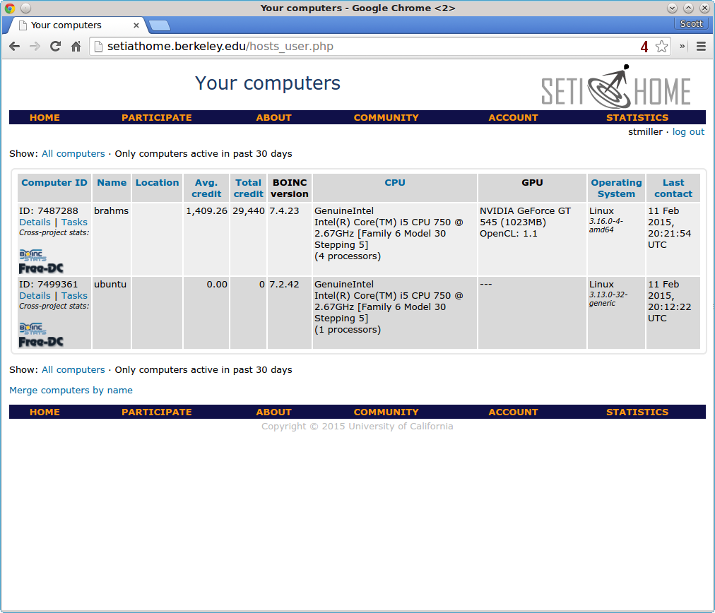
After about five minutes, the new host should appear online. Connected computers can be viewed inside the
SETI@home account page.
Step Five — Check the Status of Work Units
To view the status of work units or tasks, use the command:
boinccmd --get_simple_gui_info
Note that this displays your general SETI@home account information followed by current executing tasks on this specific host.
Below is example output for --getsimplegui_info:
boinccmd --get_simple_gui_info
======== Projects ========
1) -----------
   name: SETI@home
   master URL: http://setiathome.berkeley.edu/
   user_name: stmiller
   team_name: SETI.USA
   resource share: 100.000000
   user_total_credit: 33159.675770
   user_expavg_credit: 1409.252845
   host_total_credit: 0.000000
   host_expavg_credit: 0.000000
   nrpc_failures: 0
   master_fetch_failures: 0
   master fetch pending: no
   scheduler RPC pending: no
   trickle upload pending: no
   attached via Account Manager: no
   ended: no
   suspended via GUI: no
   don't request more work: no
   disk usage: 0.000000
   last RPC: 1423684749.199424
   project files downloaded: 0.000000
GUI URL:
   name: Message boards
   description: Correspond with other users on the SETI@home message boards
   URL: http://setiathome.berkeley.edu/forum_index.php
GUI URL:
   name: Help
   description: Ask questions and report problems
   URL: http://setiathome.berkeley.edu/forum_help_desk.php
GUI URL:
   name: Your account
   description: View your account information
   URL: http://setiathome.berkeley.edu/home.php
GUI URL:
   name: Your preferences
   description: View and modify your computing preferences
   URL: http://setiathome.berkeley.edu/prefs.php?subset=global
GUI URL:
   name: Your results
   description: View your last week (or more) of computational results and work
   URL: http://setiathome.berkeley.edu/results.php?userid=9351194
GUI URL:
   name: Your computers
   description: View a listing of all the computers on which you are running SETI@Home
   URL: http://setiathome.berkeley.edu/hosts_user.php?userid=9351194
GUI URL:
   name: Your team
   description: View information about your team: SETI.USA
   URL: http://setiathome.berkeley.edu/team_display.php?teamid=115396
GUI URL:
   name: Donate
   description: Donate to SETI@home
   URL: http://setiathome.berkeley.edu/sah_donate.php

======== Tasks ========
1) -----------
   name: 25fe12ab.24545.17667.438086664204.12.226_0
   WU name: 25fe12ab.24545.17667.438086664204.12.226
   project URL: http://setiathome.berkeley.edu/
   report deadline: Wed Mar  4 02:06:18 2015
   ready to report: no
   got server ack: no
   final CPU time: 0.000000
   state: downloaded
   scheduler state: scheduled
   exit_status: 0
   signal: 0
   suspended via GUI: no
   active_task_state: EXECUTING
   app version num: 701
   checkpoint CPU time: 352.733700
   current CPU time: 378.866400
   fraction done: 0.088431
   swap size: 110309376.000000
   working set size: 40030207.999996
   estimated CPU time remaining: 2505.901220
The status of SETI@home credit can also be viewed inside your
account page under
Computing and credit.
Conclusion
The
SETI@home forum is the best place for news and questions about running SETI@home.